Before going on about editors and IDEs, I’ll begin with a basic everyday example on modes. In my home, I have an induction cooktop. The cooktop has a touch interface with four buttons for its four elements and a control panel to set the power level.
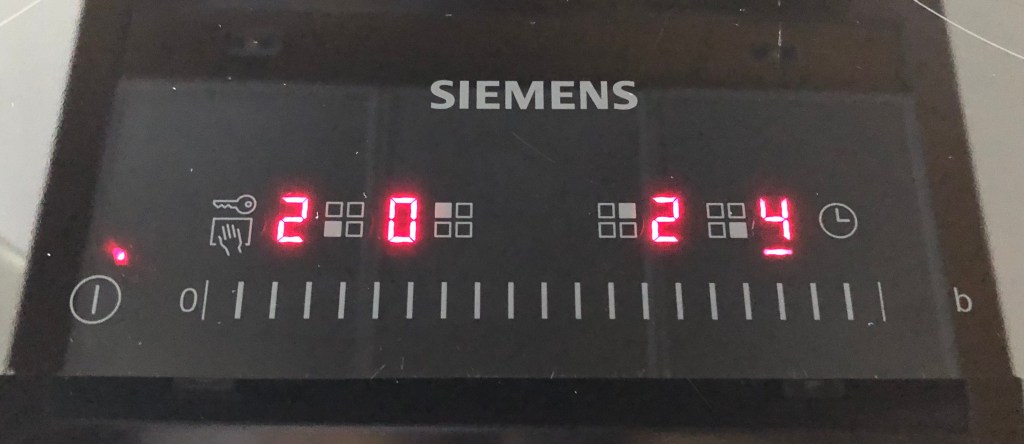
To set the heat for a specific hotplate, you select the hotplate and set the desired heat setting in the control panel. I don’t like this interface very much, as it requires me to select the correct hotplate before I can set the power level on the control panel. I would say that the interface is modal as the control panel depends on which plate (i.e. which mode) is selected.
Somewhat generalized, when I work in modes I can either use a visual queue or rely on my memory to recall which mode I’m in. Using the visual queue is relatively slow, so many times I try to use my memory which often fails during stressful situations. Switching modes is cumbersome and requires mental effort. Preferably, I would like to be able to operate the cooktop blindfolded, which isn’t possible with the current interface and often isn’t in modal interfaces.
On a side note, why would you want 18(!) different power levels? I always need to double check the resulting power level after I’ve set it, as it is hard to know which step in the control panel maps to a 5 or a 6 or a 5.5. Let me know in the comments if you think anything above 10 levels is a good idea. I can go on for a bit longer about things I don’t like with this cooktop, but I won’t. The main thing for this post is that I don’t like the modal interface, as that will be a theme for the rest of the post. To wrap things up and capture my feelings about cooktop interfaces, let me paraphrase Kendrick Lamar from his song Humble.
I’m so fuckin’ sick and tired of the touch UIs
Show me somethin’ natural like dials on a Husqvarna Regina
Show me somethin’ natural like gas with some fat knobs
Editors
In my profession as a software engineer, the text editor is one of my most important tools. Simple in its purpose, the text editor is the tool for editing (i.e. adding, moving and deleting) text. The available tools for this range from the very simple ones (e.g. notepad) to quite the sophisticated (e.g. Emacs and vim).
In the beginning of my software engineering career, I worked at Westermo where I learned python, git, Linux and Emacs. Had my colleagues at Westermo used something else than Emacs, I would have used what they used.
What I like the most about Emacs is the keybindings for cursor navigation and other common operations. There are many other great features about Emacs, but it is the keybindings that (for me) make Emacs into Emacs. To give you an idea, here are a few examples of actions and their corresponding keybindings in the editors Notepad, Emacs and Vim:
| Action | Notepad | Emacs | Vim |
|---|---|---|---|
| Move cursor to end of line | End | Ctrl+E | $ |
| Move cursor to previous line | Arrow up | Ctrl+P | k |
| Delete the character to the right of the cursor | Delete | Ctrl+D | x |
| Scroll one page down | Page Down | Ctrl+V | Ctrl+F |
The above is a very small selection of everyday editing tasks to show you the differences between the editors. As you might be able to tell, Vim is a modal editor where pressing the x key either deletes a character (if you’re in command mode) or inserts the letter x (if you’re in insert mode). It is a very powerful editor, which I’ve never quite grown comfortable with.
At Sectra, most of my close colleagues work in Visual Studio or VS Code. Because sticking to what tools your tribe is using is good for knowledge sharing, I’ve used these as well. However, a while ago I was missing the Emacs keybindings for navigation quite a bit, so I went on to do some experimentation. I found the VS Code extension Awesome Emacs Keymap which provides an Emacs-like experience in VS Code. I think it does a pretty good job, but a thing that kept bugging me was that the Emacs keybindings doesn’t work in the find widget (see issue https://github.com/whitphx/vscode-emacs-mcx/issues/137 which refers to https://github.com/microsoft/vscode/issues/64694 for more info). Having the Emacs keybindings no longer work when opening the find widget felt very inconsistent and required much cognitive effort to know which keybindings works when and where. Let me show you what I mean:
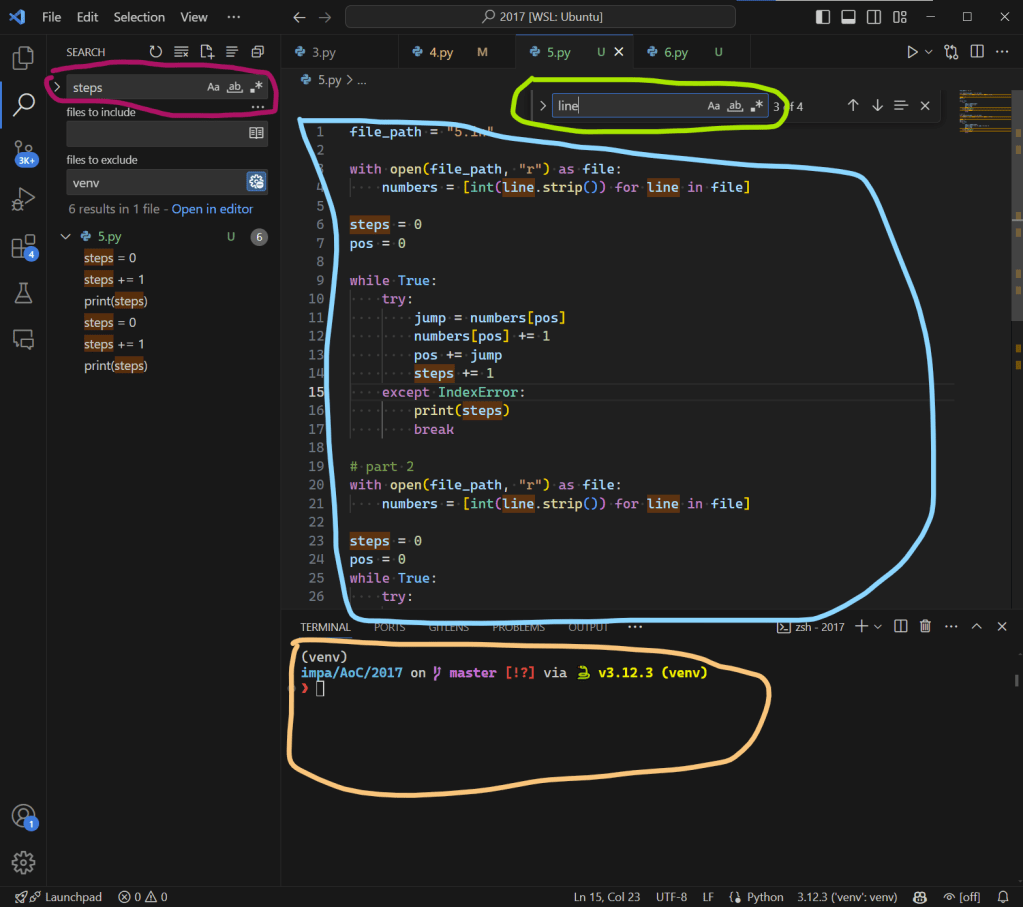
In the image above, I have VS Code with the Awesome Emacs extension installed. This leads to four different keybind behaviors at four different places. In the main editor window, marked in light blue, I have Emacs keybindings. In the terminal window, circled in light orange, I have basic zsh/linux keybindings. In the global search widget, marked in purple, I have windows keybindings, and finally in the small search widget, marked in green, I have the limited keybind support where basically nothing works except arrow keys, delete and backspace. It was an absolute mess and keeping track of which keybindings work where required a lot of brain cycles that could be better used elsewhere. I think the Awesome Emacs Keymap extension is the best Emacs experience offered in VS Code at this time, but sadly it leaves a lot to wish for.
Emacs as a python IDE
Having giving it my all to have VS Code work with Emacs keybindings, and failed to get a satisfactory result, I thought I’d give Emacs itself a go. Now, having used VS Code and IDEs for several years, I’ve grown accustomed to a certain level of comfort when it comes to programming. Things like IntelliSense, Go To Definition/Implementation, refactoring and renaming are things that I expect to have available at my fingertips these days.
Emacs can do all of these things, but it doesn’t work out of the box. I tried out both Spacemacs and Doom Emacs in an attempt to have my Emacs equipped with some IDE-like features, but eventually I realized that neither of these were for me, main reason being that they don’t use the Emacs keybindings by default but rather invent some other keybinding scheme which I’m sure is great but that I don’t have the patience to learn.
I then decided to use vanilla Emacs and try to get a basic Python setup for some hobby programming. After having hacked together a .emacs configuration file with some font, quality of life, and package archive settings I was ready to get the Python support working. Coming from the warmth of VS Code’s comfort, I assumed that it would be something along the lines of installing the python package and then get rolling. Several hours of chasing configurations later, I have something that resembles a sophisticated environment for python programming in Emacs, but I’m still not satisfied with my setup.
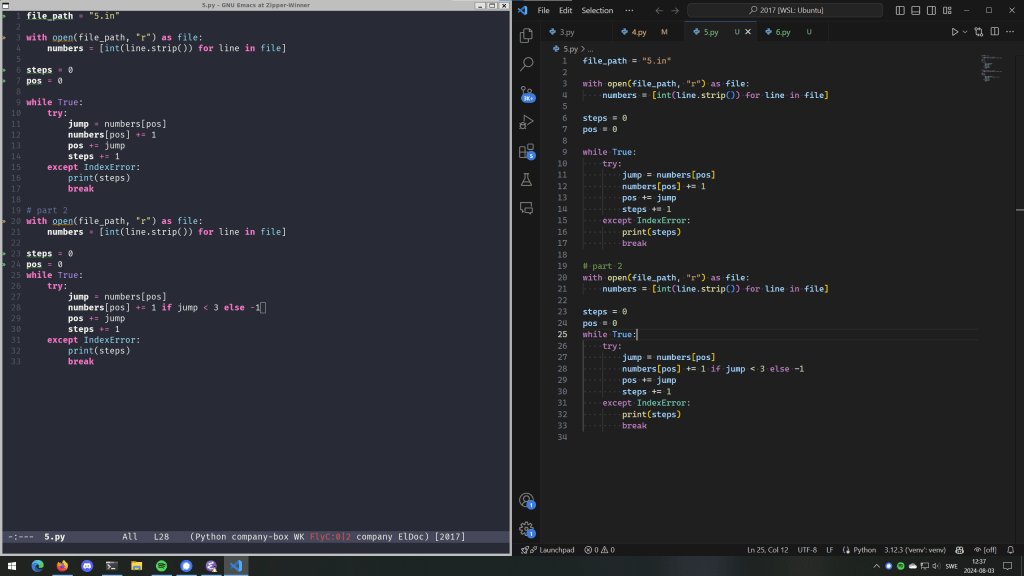
Quickly summarizing my hurdles, you may look at https://www.emacswiki.org/emacs/PythonProgrammingInEmacs and https://www.reddit.com/r/emacs/comments/17g1jw3/what_is_yours_configuration_for_python/ and then try to figure out which packages you need/want/should use. Should I use LSP, and if so which LSP client? Jedi sounds cool, what does that do? black or ruff? What do these packages provide, how do they overlap and how do they synergize? How do I configure Emacs to work with my python virtual environments? There are a lot micro-decisions to be made when using Emacs. In VS Code on the other hand, those decisions are made for you with good defaults out of the box. At worst, you might have to put a few clicks on the ”Yes” button when asked to install support.
In all fairness, I thought it was a lot of fun tinkering with my Emacs configuration, searching through blog posts and Reddit threads for the best choices, and Emacs is an amazing editor! However, it requires a big time investment which I didn’t find worthwhile for two main reasons. First, using Emacs (especially on Windows) becomes a mode in itself where you’ll have certain keybindings in Emacs but as soon as you leave Emacs for, let’s say, your web browser, you have a completely different keybinding scheme and then we’re back to the required cognitive load of mode switching. I suppose you can use an add-on like Edit with Emacs to get an Emacs-like experience in your browser, but then you’ll have to add another customized extension to your toolkit along with its bugs and quirks.
The second reason for not using Emacs is that none of my current colleagues use it, and I firmly believe in the power of learning from your peers, having a network of support and collaboration and growing stronger together. This means that you probably have to be somewhat aligned in how you work and which tools you use. There should always be room for experimentation and exploring alternate ways, but riding together on the main highway has its perks for sure.
The optimal Emacs experience?
Another alternative I experimented with was to use the Emacs keymap in Rider and other JetBrains IDEs. The Emacs integration is much smoother in Rider than in VS Code, and if it wasn’t for main reason one I mentioned two paragraphs up I would perhaps have stuck to that setup. In addition, Rider is a fully fledged IDE and as such it is much slower compared to VS Code and Emacs. Sometimes you’ll want those features, but for my personal hobby projects it is oftentimes overkill. In addition, Rider is not free and when I briefly tried to run it in WSL (for which there is currently beta support), the bad performance made it unusable.
If I would like to have a really good Emacs-like developer experience, I would probably use JetBrains IDEs with their Emacs keymap, and macOS, which has some Emacs keybindings enabled natively. I think that would be quite a joyful experience and it is similar to what I was running when I was a student at LiU. However, times have changed since then and today I’m nowhere near being a macOS user, neither professionally or personally, and sadly not an Emacs user either.
Leaving Emacs behind and looking forward
After this summer I will be back with VS Code and its vanilla keybindings as my main setup. I’ll be using Home, End and arrow keys in a fashion that makes Emacs and vim users frown. Looking at the results from this year’s Stack Overflow survey, VS Code is the major editor out there, and bathing in its popularity is a comfortable swim. With that said, it’s refreshing and enlightening to dip your toes into the single-percentage tools every now and then.
In the upcoming months, I hope to spend some time on learning more about AI tools like Copilot and ChatGPT rather than finding the optimal text editor experience. However, I would have liked that the problem of efficient navigation in text files had come a bit further. What I mean by that is that I wish for a non-modal solution that is on par with Emacs and vim keybindings in terms of features, but that is better established than Emacs. Let me know if you have alternative solutions to this problem that is worth diving into. Happy editing!
 Vox clamantis in deserto